Category Archives: Xcode

Xcode Consolation

One of the best things any Mac or iOS developer can do to improve their craft is to simply watch another developer at work in Xcode. Regardless of the number of years or the diversity of projects that make up your experience with the tool, you will undoubtedly notice a neat trick here or there that changes everything about the way you work.

If you were sitting in my office on a typical workday, looking over my shoulder, that would be a little creepy. But one thing you’d notice that differentiates me from many others is the amount of time I spend typing into the Xcode debugger console.

In my experience, other developers fall into three groups when I mention that I use the console almost exclusively when interacting with the debugger:

  1. Those who share this approach. We exchange high-fives and move on.
  2. Those who appreciate the console for occasional tricks, but rely mostly on the variables view.
  3. Those who have never heard of or noticed the console.

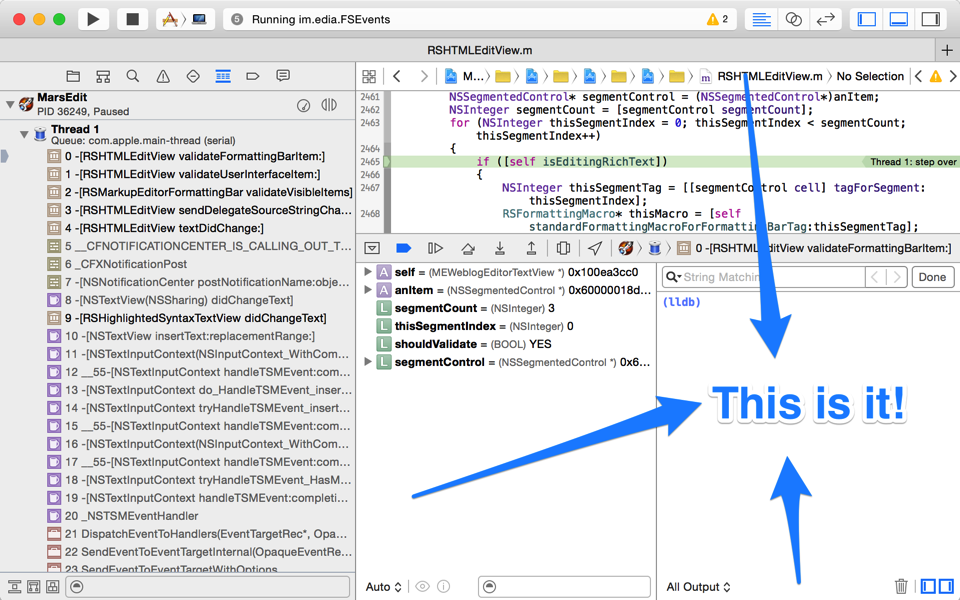
Let’s assume for the sake of argument that you fall into group 3. You can show the console while debugging any process by selecting View -> Debug Area -> Activate Console from the menu bar. In fact, I do this so often that that the keyboard shortcut, Cmd-Shift-C, is completely second-nature to me.

Xcode window with console highlighted.

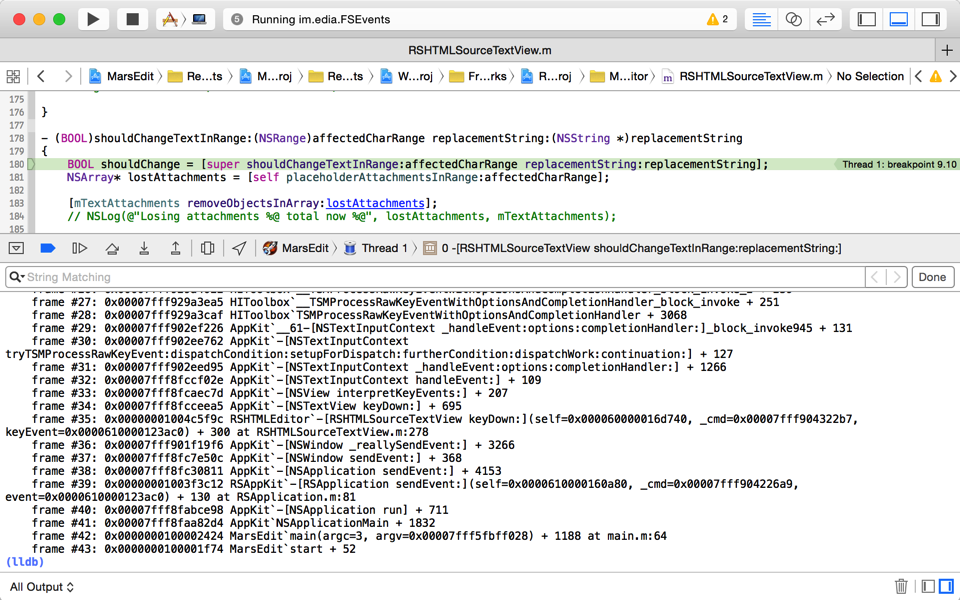
In fact I find the console so useful that it’s not unusual for me to hide much of the other junk, so I can have a mainline connection to the debugger.

Xcode window with large console area

So let’s go back again to the uncomfortable assumption that you’re sitting in my office, looking over my shoulder. What would you see me do in the console? All manner of things: For one thing I rarely click those visual buttons for stepping through code. Instead, I use these terse keyboard aliases, inherited from the bad old Gdb days. In lldb, these all come as standard abbreviations of more verbosely named commands:

  • n – step over the next line of source
  • s – step into the first line of source of a function
  • ni – step over the next instruction of assembly code
  • si – step into the first instruction of a function
  • c – continue
  • fin – continue until return from current stack frame

Those are the basics, but another trick, I believe it was called ret in Gdb, comes in handy often:

  • thread return – return immediately from the current stack frame

You could use this if you are stuck in some function that is crashed, for example, but you know that returning to the caller would allow the process to continue running as normal. Or, you could use it to completely circumvent a path of code by breaking on a function and bolting right out, optionally overriding the return value. Just to pick an absurd example with flair, let’s stub out AppKit’s +[NSColor controlTextColor]:

(lldb) b +[NSColor controlTextColor]
Breakpoint 1: where = AppKit`+[NSColor controlTextColor], address = 0x00007fff8fb05572
(lldb) break command add
Enter your debugger command(s).  Type 'DONE' to end.
> thread ret [NSColor redColor]
> c
> DONE
(lldb) c

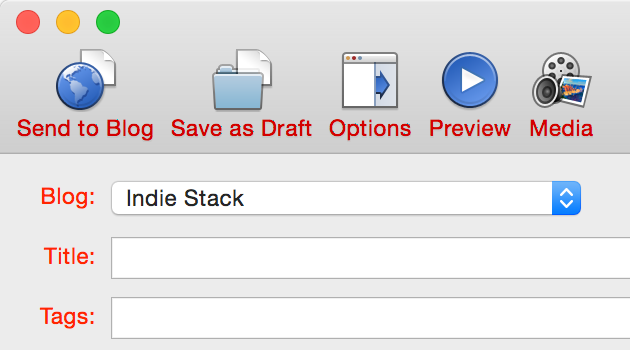
Here we have opted to break on every single call to controlTextColor, returning to the caller with a fraudulent color that is apparently not consulted by the label for this popup menu in MarsEdit:

MarsEdit screenshot with labels drawn in red

In fact, mucking about with system symbols is one of the great tricks of the console, and lldb’s built-in “breakpoint” command brings with it superpowers that can’t be touched by Xcode’s dumbed down GUI-based controls. For example, what if we wanted to set a breakpoint that would catch not only +controlTextColor, but any similar variation? Using lldb’s support for regular expression breakpoints, it’s a snap:

(lldb) break set -r control.*Color -s AppKit
Breakpoint 1: 20 locations.

Here we request that a breakpoint be set for any symbol in the AppKit framework that contains the lower-cased “control,” followed by anything, then capitalized “Color.” And lldb just set 20 breakpoints at once. To see them all, just type “breakpoint list” and you’ll see all the variations listed out as sub-breakpoints:

(lldb) break list
Current breakpoints:
1: regex = 'control.*Color', locations = 20, resolved = 20, hit count = 0
  1.1: where = AppKit`+[NSColor controlTextColor], address = 0x00007fff8fb05572, resolved, hit count = 0 
  1.2: where = AppKit`+[NSDynamicSystemColor controlTextColor], address = 0x00007fff8fb05670, resolved, hit count = 0 
  1.3: where = AppKit`+[NSColor controlBackgroundColor], address = 0x00007fff8fb1465d, resolved, hit count = 0 
  1.4: where = AppKit`+[NSDynamicSystemColor controlBackgroundColor], address = 0x00007fff8fb1475d, resolved, hit count = 0 
  (etc...)

One major shortcoming of all this goodness is Xcode has a mind of its own when it comes to which breakpoints are set on a given target. Anything you add from the lldb prompt will not register as a breakpoint in Xcode’s list, so you’ll have to continue to manipulate it through the console. You can enable or disable breakpoints precisely by specifying both the breakpoint number and its, umm, sub-number? For example to disable the breakpoint on +[NSColor controlBackgroundColor] above, just type “break disable 1.3”.

Regular expressions can be very handy for setting breakpoint precisely on a subset of related methods, but they can also be very useful for casting about widely in the vain pursuit of a clue. For example, when I’m boggled by some behavior in my app, and suspect it has to do with some system-provided API, or even an internal framework method, I’ll just throw some verbs that seem related at a breakpoint, and see what I land on. For example, it seems like some delegate, somewhere should be imposing this behavior:

(lldb) break set -r should.*:
Breakpoint 5: 735 locations.

That’s right, set a breakpoint for any ObjC method that includes the conventional “shouldBlahBlahBlah:” form in its selector name. Or if you are really at your wit’s end about an event related issue, why not capture the whole lot and see where you stand?

(lldb) break set -r [eE]vent
Breakpoint 10: 9520 locations.

Sometimes I’ll set a breakpoint like this and immediately continue, to see what I land on, but often I’ll use lldb’s breakpoint system as a quick way of searching the universe of symbol names. After setting a breakpoint like the one above, I’ll do a “break list” and then search through the results for other substrings I’m interested in. This often gives me a clue about the existence of methods or functions that are pertinent to the problem at hand.

I’ve scratched the surface here of all the powerful things you can use Xcode’s debugger console for, but I hope it has brought you some increased knowledge about the tools at your disposal. If you’ve never used the console before, or only use it occasionally, perhaps I’ve pushed you a bit farther down the path of having its Cmd-Shift-C shortcut feel like second-nature to you as well.

Share Extension Iterations

One of the many big surprises at WWDC this year was the news that iOS 8 and Mac OS X 10.10 would support app extensions, which give developers a variety of new ways in which data and services can be shared between apps.

One of these new types of extension, called a Share extension, essentially allows apps that generate user data provide content to apps that publish user data. As a developer whose main app, MarsEdit, is a blog-publishing tool for the Mac, you can imagine how this might be of interest to me.

The first thing I noticed upon digging into app extension development is that it’s fairly fiddly to get set up, and the default build, run, invoke iteration loop is fraught with administrative overhead.

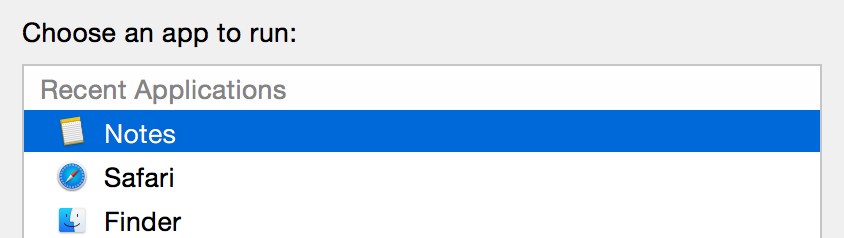
First of all, when you add a Share extension target to an existing project, you’ll discover that the new target can’t be run directly. To test or debug it, you have to invoke the Share extension from some app that supports … sharing. There are many default apps on the Mac and iOS that support sharing data of various formats. For example on Mac OS X the system Preview app makes a canonical sharing source for photo data, while the Notes app is one of many suitable test apps for sharing text. If you don’t do anything special after adding a Share extension target to your project, the auto-generated Xcode scheme will be configured to ask every time you run:

ChooseAnApp

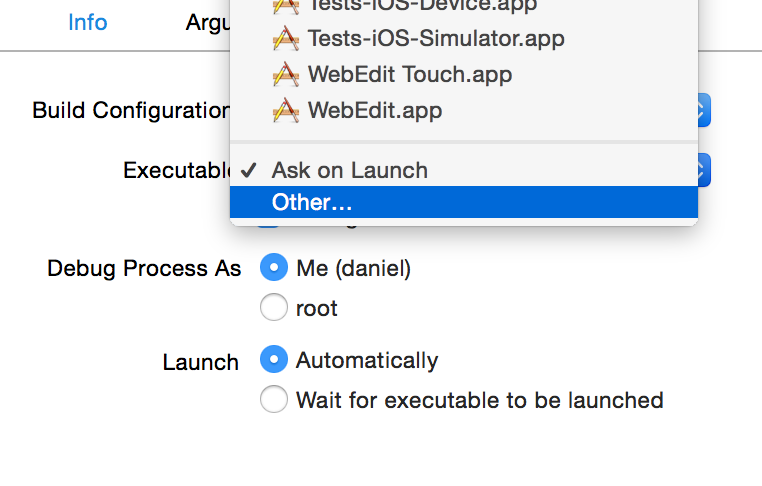
This will get old fast, and 99% of the time what you’ll want to run is exactly the same dang app you just ran. Luckily, this is easily addressed in the scheme settings, where you can change the “Executable” selection in the “Info” section of the “Run” tab from “Ask on Launch” to a specific application of your choosing.

OtherApp

That’s all well and good, but you still have to go through the tedious task of selecting some suitable content in the target app, clicking the share button, and choosing your extension from the list, before you even have the luxury of examining your own code’s behavior.

Wouldn’t it be great if you could make changes to your app extension’s appearance or behavior, click Run, and moments later be looking at your Share extension’s UI without having to do anything else? Good news: you can, and I’m about to explain how to achieve it for both Mac and iOS targets.

Automatic Invocation

The problem with all the targets on your Mac or iOS that may or may not support sharing pertinent data to your extension, is you have to walk them through the process of invoking you. When you’re deep into the development of a particular aspect of the user interface or mechanical behavior of your extension, what you really want is to repeatedly invoke the extension with the same, predictable kinds of data. Luckily, it’s possible on both Mac and iOS platforms for a host app to invoke sharing extensions programmatically, so you just need to choose a Run target that will predictably invoke your extension upon launching.

The only way I know to guarantee this is to write your own code that invokes the extension, and put it in a custom debugging-purposed target, or else put it into your main app as conditional code that only runs when building Debug variants and when prompted to take effect. I can imagine a sophisticated version of this approach involving a multi-faceted extension-debugging target that would be capable of fast-tracking extension invocation for a variety of data formats. But for the simplest solution, I recommend adding the ability to invoke your extension to the very app that hosts it. Then your simple test mode behavior will always coexist in the same source base as your extension code.

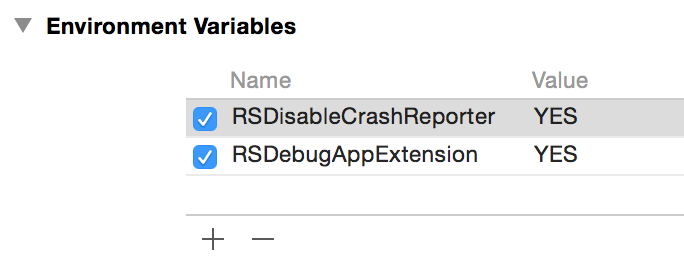
The way I approached this was to add an environment variable, “RSDebugAppExtension” to the scheme configuration for my app extension, which is also configured now to target the main app as its Executable target. So when I build and run the app extension scheme, may main app runs with these environment variables set:

Screenshot 11 24 14 3 12 PM

Now in the main app’s applicationDidFinishLaunching: method, I just have to add the appropriate code for invoking the app extension’s UI. Without the platform-specific voodoo, it looks something like this:

#if DEBUG
	// Check for flag to invoke app extension
	NSDictionary* env = [[NSProcessInfo processInfo] environment];
	NSString* appExtensionDebug = [env objectForKey:@"RSDebugAppExtension"];
	if (appExtensionDebug != nil)
	{
		// RUN MY EXTENSION
	}
#endif

The #if DEBUG just ensures that I will never inadvertenly ship this code in a release version of my app. The environment variable ensures I won’t be plagued by my extension’s UI appearing whenever I’m working on other aspects of my app besides the extension.

Now we just have to dig into the specifics of how to “RUN MY EXTENSION.” I’ll show you how that works for both Mac and iOS based Share extensions.

Invoking a Mac-based Share Extension

If you’re working on a Mac-based Share extension, the key to invoking it at runtime is to enlist the help of the NSSharingService infrastructure. You simply ask it for a service with your identifier, and ask it to “perform.”

NSString* serviceName = @"com.red-sweater.yeehaw";
NSSharingService* myService = [NSSharingService sharingServiceNamed:serviceName];
[myService performWithItems:@[@"Hello world"]];

Now when I build and run with the aforementioned environment variable set up, it pops up my Share extension, pre-populated with the text “Hello world.”

Invoking an iOS-based Share Extension

Unfortunately, iOS doesn’t support the same NSSharingService infrastructure that the Mac has. This seems like an area where we might be lucky to see more unification over the years, but for the time being the iOS notion of a sharing service is tied up with the existing “Social.framework” and its SLComposeViewController class. This is the interface that is supposed to be used to invoke a sharing panel for Facebook, Twitter, Tencent Weibo, etc. And luckily, although I don’t believe it’s documented, you can also pass in the extension identifier for your custom Share extension to instantiate a suitable view controller for hosting your extension:

NSString* serviceName = @"com.red-sweater.yeehaw";
SLComposeViewController* myController = [SLComposeViewController composeViewControllerForServiceType:serviceName];
[myController setInitialText:@"Hello World"];
[[self navigationController] presentViewController:myController animated:YES completion:nil];

You can see the basic gist of it is similar to the Mac, but you have to configure the view controller directly as opposed to providing a list of arbitrary input values. Also bear in mind that because the iOS-based solution above relies upon [self navigationController] being non-nil, you’ll need to add the special debugging code at a point in your app’s launch process when this is already set up, or else find another way of ensuring you can meaningfully present view controllers to your app’s main window.

Going Further

Notice that I hinge all the invocation on simply whether the RSDebugAppExtension environment variable is non-nil. Basically while I’m debugging I have to go in and change the code in applicationDidFinishLaunching to invoke the extension in the way I want. This works OK for me at least at this stage, but I can imagine down the road wanting to be able to fine-tune the behavior of how the extension is invoked. For this purpose, why not encode into the value of the environment variable itself certain clues about how to invoke the extension? It could specify for example what text should be passed the extension, or other configuration as desired.

My intent in sharing this blog post is both to point out some potentially time-saving tricks that will help those of you developing Share app extensions, but also to encourage you to look for creative ways to cut out the tedious aspects of whatever you work on. When all is said and done, the few monotonous steps during each iteration of work on a Share extension probably don’t add up to all that much in sheer time, but they take a lot of the joy and immediacy out of development, which frankly puts me in a bad mood. Clicking Run and seeing my work, including my latest changes, pop up instantly on the screen makes me feel a lot happier about my job.

Burn After Releasing

I am pretty diligent about following up on crash reports, probably because when it comes down to it, chasing crashes is one of the funner aspects of software development to me. Sure, when I’m hours into a frustrating problem and can’t make heads or tails of why something’s blowing up, it’s exhausting, and I wish to hell I could simply find the solution, but upon finally unwinding the riddle of a failure, it’s all those hours of toil that pay back dividends as the thrill of success.

Recently I had an odd MarsEdit crash report come in with a brief but ultimately very meaningful comment attached to it:

“I just updated a post with a PDF embedded from OneDrive.”

I love it when customers take the time to write something about the circumstances surrounding a crash. Often even a little clue can be enough to lead to the unique series of steps that will ultimately reproduce the problem. In this case though, I was confused. I know OneDrive is Microsoft’s cloud storage solution, but is the customer uploading a PDF from their mounted OneDrive, or … ?

Luckily the customer in this case also left an email address, so I got in touch and, after a few rounds of zeroing in on the meaning of the expression “embedded from OneDrive,” I learned that the issue was specifically to do with pasted HTML source code that Microsoft offers to customers who wish to literally embed a OneDrive document into another web page.

So I created a OneDrive account, added a PDF document to my storage, copied the “embed code” for the item, and pasted it into a new MarsEdit post. To my great surprise and satisfaction, when I pressed Send and published the post to my blog, MarsEdit crashed with exactly the same stack trace as the customer had submitted.

Well, I’ll be darned.

Pointing The Finger

The stack trace in this case was pretty cryptic, and implied that a private Apple class, NSURLConnectionInternal, was crashing while trying to message what I could only assume was its delegate. Here’s the gist of the very tip of the crashing thread’s trace:

Thread 0 Crashed:: Dispatch queue: com.apple.main-thread
0  libobjc.A.dylib	objc_release
1  libobjc.A.dylib	AutoreleasePoolPage::pop(void*)
2  com.apple.CFNetwork  -[NSURLConnectionInternal _withConnectionAndDelegate:onlyActive:]
3  com.apple.CFNetwork	-[NSURLConnectionInternal _withActiveConnectionAndDelegate:]

Usually, when you see something like this where a thread is crashing while trying to release an object, the first thing to suspect is that you’ve screwed something up. Probably by over-releasing some object or neglecting to nil-out a delegate attribute when one of your objects is destroyed. But in the case of logs like this where the crash occurs with a backtrace that is separate from your own code’s control (it’s a run loop callback to Apple’s own networking code), it can be hard to trace it back to specific code in your app. In this case, I can tell by the NSURL clues that a network request is probably being serviced, but which one? And which object was its delegate? Luckily, the clue about OneDrive had led me to a working test case, so I could dig into this question with more care.

The first step I like to take is to hopefully separate the crashing issue from my own app’s code, by creating a stripped-down test app that exhibits the problem. If I couldn’t achieve that, then the bug probably did rest somewhere in MarsEdit, and if I could create such a test case, then the problem of poking at it to deduce what is going wrong is made much simpler.

I created a new document based application whose document windows possess a single WebView. When a new document is created, the document does one thing: load one of those OneDrive embedded documents as the HTML content of the view. Armed with this test app, I was able to create new WebView instanced with the presumably problematic HTML code, and observe the behavior of each WebView in isolation from other junk that might have been going on in a more complex app such as MarsEdit.

The only problem was that my test app didn’t seem to exhibit any problems. I could load 10, 20 WebViews with the OneDrive embed code in it, and they all ran like butter. Damn it, there was no bug here! Until, that is, I deigned to close one of those windows. Blam! The test app crashes, yielding an identical stack trace to the one provided by my customer and reproduced in MarsEdit.

It started to make sense: when you publish a post from MarsEdit, the default setting is to also then close the window associated with that post. The reason the customer experienced the crash after sending the post to their blog was only because that happened to correlate with MarsEdit subsequently closing the window, and thus destroying the WebView that had held the OneDrive embed content.

Whose Zombie Is This?

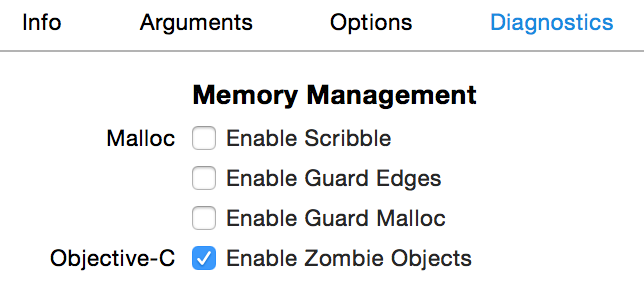
Armed with a simple test case that reproduces the bug at will, the first thing I did was to enable Apple’s built-in facility for debugging so-called “zombie” objects. These are perfectly named because they are objects that have been deallocated but which some code within your app treats as though they were still alive. When you message a zombie object, the behavior is unpredictable because all the data that had been associated with the object is now correlated with whatever other use the system has found for that area of memory. Xcode has a convenient checkbox that makes it easy to turn on zombie detection. Just open the scheme editor and look for the Diagnostics tab under the Run configuration:

Screenshot 11 6 14 5 25 PM

This option instructs the Objective-C runtime to abstain from completely deallocating objects. In doing so, it transforms deallocated objects into a special kind of placeholder object that can detect when it has been messaged, and scream to high hell about it. When I run with zombie objects enabled, and reproduce the crash, I also see this message in the console log:

*** -[WebView release]: message sent to deallocated instance 0x6080001273a0

Ah ha! So the object in question, the one being delegated to by NSURLConnection, is probably the instance of the WebView itself. But, I don’t set a WebView as a delegate of any NSURLConnection, and certainly this simplified test case doesn’t. So it must be WebKit itself that is setting itself as an NSURLConnection’s delegate. Not my problem, I can file the bug and move on … or can I?

Going The Extra Mile

This is where the open-sourced nature of WebKit is both a blessing and a curse. If this issue had been revealed to exist somewhere deep within AppKit, or any of Apple’s other closed-source frameworks, I most certainly would have thrown up my arms, filed a bug, and hoped for the best. But Apple’s WebKit framework is something I can download, build, and debug. Sure, it takes nearly all day to build, and there is a steep learning curve to debugging it, but why did I become a software developer if I’m not up for a challenge?

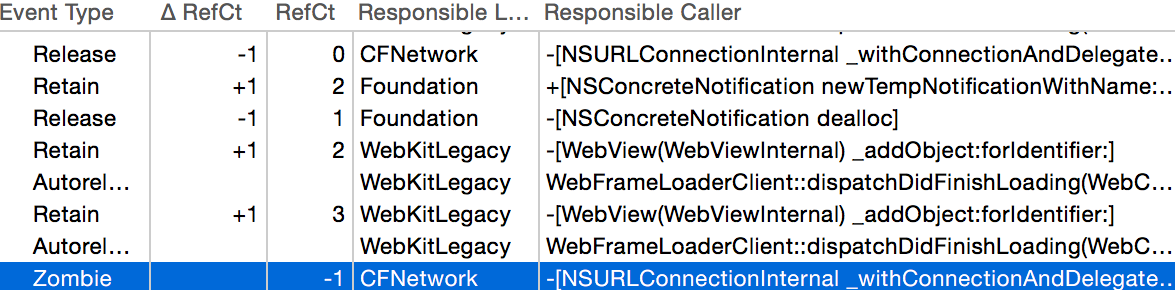
Since I knew that the issue at its core appeared to be the over-release of an object, specifically of the WebView, I moved up from the basic utility of zombie objects to the high-octane “Zombies” flavored analysis configuration of Apple’s Instruments tool. Like the runtime flag we set earlier in Xcode, this makes it easy to detect attempts to message zombie objects, but it also goes a step further by correlating that knowledge with a recorded history of a given object, and all the memory-management related manipulations of that object.

Simpler

The tail end of a very long table shows the running retain count for an object, in this case the WebView itself, as well information about which library, method, or function was responsible for the call that affected the object’s memory management status.

To make a long, long, long, long, story very short: I used Instruments and its “pairing” functionality, which lets you hide balanced pairs of retain/release calls so that you are left with a more manageable subset of calls to examine and scrutinize. After scratching my head over this for hours and not making much headway, I finally came upon a specific call stack that had a very suspicious heritage. I confirmed through Instruments and then by direct examination of WebKit source code, that the WebView instance in question was in fact retaining and then autoreleasing itself as part of its dealloc method.

In this era of ARC, some of you may not be so intricately familiar with Cocoa memory management to see at a glance why that’s a very bad thing. Here it is a nutshell:

  1. By the time an object’s dealloc method is done running, the object is gone. I mean, literally gone, or else being managed as a zombie object for debugging purposes.
  2. An object can be retained and released as much as you like, but if you’re already in the midst of dealloc’ing the object, it won’t make a bit of difference.
  3. Autoreleasing an object postpones release until a later time, when the active autorelease pool is released.
  4. Thus, autoreleasing an object in the midst of being dealloc’d guarantees that it will later be sent a release message. Oops, that would be bad. It could even cause a crash like the one we’re seeing…

How in the heck does WebView manage to autorelease itself as a consequence of dealloc’ing itself? And what unique relationship does that possibility have to the embedding of Microsoft OneDrive documents? I’ll try to be as brief as possible:

Microsoft’s OneDrive support installs JavaScript callbacks that run on a periodic basis, constantly fetching data from Microsoft’s servers via xmlHTTPRequest. The calls are made with such frequency that, especially while an embedded document is in the process of loading, there’s a good chance that closing a WebView and dealloc’ing it will catch Microsoft at a time when it thinks sending such a request is a good idea. The process of cleaning up the WebView has a side-effect of cleaning up the JavaScript runtime environment, and callbacks such as Microsoft’s might get one last chance to send a network request.

Sending the request would be fine, except for WebView’s own conscientious behavior which takes care to retain and autorelease itself whenever a new batch of network requests is made on its behalf. This guarantees that the WebView won’t disappear while an open request is running. But of course, it can’t make that guarantee when the WebView is in the process of being destroyed.

Short story shorter: WebView inadvertently adds itself to the autorelease pool when it’s on the verge of being destroyed, and subsequent release of that autorelease pool causes a zombie message to be sent to the deallocated instance.

I reported the bug, and submitted a patch to the WebKit team. My proposed fix works around the problem by wrapping the bulk of WebView’s -dealloc method with a separate autorelease pool, such that any inadvertent autoreleasing of the WebView will be tidied up before the object is literally destroyed. Because WebKit is open source, I was able to make the change, build and test it, and confirm that the crashes disappear both in my test app and in MarsEdit.

I would like to thank Alexey Proskuryakov for taking the time to help dig into the issue in parallel with me. He was on to the nut of the problem long before I was, but I glossed over some key hints in his analysis. He also helped in guiding me through the steps of submitting a proper patch with my bug report.

In The Mean Time

Hopefully Apple will accept my patch, or come up with a smarter way of fixing the problem for a future update to WebKit. In the mean time, I want my app to be as reliable as possible for the widest variety of users as possible. Yes, that even means Microsoft OneDrive users. How can I work around the problem today?

The simplest solution, requiring neither subclassing of WebView, swizzling, or anything like that, is simply to take care before releasing a WebView in your app, to manually call -[WebView close] on it first. This takes care of all the complicated business that runs the risk of autoreleasing the WebView, such that when WebView’s own dealloc method is reached, it won’t have any such complexities to expose itself to.

Tracking down and fixing this bug has been an incredibly tiresome yet rewarding experience. I hope you have learned a thing or two from the approach I took here, and that I have inspired you to take crash reports with the seriousness they deserve. Your customers will thank you for it, and you might even get a kick out of occasionally coming out on top!

What To Do About Code Signing

I wrote about the confusion arising from Apple’s poor communication about new code signature requirements, and then just earlier today I wrote about the revelation that many apps have been reprieved by an Apple whitelist.

I tend to write long, so let’s cut to the chase: what do you need to do if you are a Mac developer who ships software directly to customers or via the Mac App Store?

  1. You must ensure your next software release is signed with a Version 2 code signature. The easiest way to do this is to build and sign your product on Mac OS X 10.9 or later.
  2. You must test your existing, published apps to see that they can be downloaded and opened without issue on 10.9.5 and 10.10. To be safe, try to test once from a machine/install that has never seen the app before. If you’re concerned, read the details in my previous posts to assure yourself that your existing app was whitelisted.
  3. If your existing app does not open or in particular if it receives an “obsolete resource envelope” assessment from the “spctl” tool, you must either release a new version of your app signed with a Version 2 code signature, or re-sign your existing app. Otherwise, people who download the app will be greeted by a warning that the software is “not trusted.”

That’s it, folks. Everybody has to start signing with the modern code-signing infrastructure. In the interim, there’s a good chance your app has been whitelisted to operate as usual during the transition, but that courtesy will probably not extend to your next release.

Accepted CDHash

A bit over a month ago, Apple announced big changes to the way Mac OS X versions 10.9.5 and 10.10 will recognize the code signatures of 3rd party applications, hinting very strongly that consequences would be dire for any developer neglecting to re-sign their apps:

Important: For your apps to run on updated versions of OS X they must be signed on OS X version 10.9 or later and thus have a version 2 signature.

Few details were given as to why the old signatures would no longer be respected, leaving developers with little to go on except to take Apple’s word that we should drop everything and update our code signing processes, which for some of us was a non-trivial amount of work. Those of us willing to grant Apple the benefit of the doubt assumed that there was some greater purpose to our collective suffering. Surely this nuisance is in the name of preserving or increasing security for all of Apple’s and our mutual customers.

That, and the fact that Apple stated bluntly that if we don’t make these changes, our apps will not pass Gatekeeper’s assessment and thus will not be allowed to launch without considerable work by users. This is an unacceptable user experience to any developer worth her or his salt, so of course the vast majority of us complied.

Some of us complied even when the logic of doing so was comically bent. For example Apple implied that developers of apps for the Mac App Store also needed to update their code signatures, in spite of the fact that all Mac App Store apps are signed by Apple, not by the original developers. The process of submitting software for sale on the App Store does include a code signing phase, but the signature is replaced by Apple before it is distributed to customers. So, if there is a security issue with version 1 code signatures, Apple is in a position to remedy the problem without the involvement of 3rd party developers. Some of us sought clarification from Apple on this point. Questions in the Apple Developer Forums along the lines of “do we really have to re-sign apps and submit a new version just to accommodate this new requirement?” were met by terse restatements from Apple along the lines of “all apps must be signed with version two code signatures.”

Sigh.

To make matters yet more confusing, a developer who has signed off on the chore of complying with Apple’s requests would not necessarily be able to verify the job was done right, because for example on pre-release builds of 10.9.5 and 10.10, many apps with “old and busted” version 1 signatures unexpectedly passed the system’s Gatekeeper check, contrary to the firm indication from Apple that they shouldn’t. Apple’s documentation provided a specific command to run from the Terminal that would verify or reject any specific app’s code signing:

spctl -a -t exec -vv Foo.app

For many of us with very old version 1 code signatures, the command line came back with a cryptic “accepted cdhash”, and the system happily opened and ran the apps without issue.

I reported the problem as a security bug because it seemed to suggest that apps with broken, insecure code signatures would still be allowed to run. I waited to see whether, with each subsequent beta release, Apple would finally ratchet things down to give me a taste of how customers would experience trying to run these apps with outdated signatures. But each beta release continued to allow them to run without incident.

Finally, a few days ago I got my bug sent back to me to be closed. Oh, they finally fixed it? Nope. It was returned with the classification “Behaves as intended.” Then yesterday, 10.9.5 shipped and lo and behold, contrary to every warning and veiled threat from Apple, many of these apps with old, version 1 code signatures, of the variety that yield a cryptic “accepted cdhash” assessment from the spctl tool, well, they just work. They’re fine. This happens to apply to my entire line of apps and this is probably also the case for many other developers. In short? I dropped everything, spent hours revising my code signing process, investigating unexpected results, contacting Apple for clarification, trying to make sense of Apple’s terse replies, and finally doing my best to comply regardless of doubt. And it turns out I didn’t actually have to lift a finger.

Which is not to say that nobody had to lift a finger. Any developer whose code signatures involved the use of “custom resource rules,” and (I think) any developer whose version 1 signature was signed with a new enough version of Xcode to escape the “accepted cdhash” loophole, but not new enough to be a “version 2” signature, did need to re-sign their apps.

This was a classic case of Apple communicating far too poorly about a situation that purported to affect potentially every Mac developer. Many of us spent way too much time trying to decode and make sense of the situation when Apple could have done so for us through careful clarification of the specific code signatures that needed updating, how they could be reliably verified, and what the actual consequences of inaction would be.

Re-signing Code

Given the implied urgency of Apple’s demand that developers provide updated versions of apps with “version 2” code signatures, many people are scrambling to get their build processes updated so that e.g. the apps are built on 10.9 or higher. This is the most natural and attractive technique for ensuring that your Mac apps are signed properly.

However, for a variety of reasons many of us either need to build with older versions of Mac OS X or Xcode. We face a conundrum that can be solved by signing (or more accurately, re-signing) the apps on 10.9, ensuring that the signature is up to snuff even if the code was compiled and the app was assembled with earlier tools.

This is a fairly straight-forward process, but there are some gotchas and you should be aware of what effect running codesign with various flags will have on your finished product. In a nutshell, you want to establish new code signatures on all the binaries in your bundle, but you don’t necessarily want to reset specific entitlements or other metadata that was set on the code by your old-and-busted code signatures.

Felix Schwarz offers a bash script suited to re-signing and further packaging the resulting app into a .pkg file suitable for submission to the Mac App Store. If you’re looking at automating this process, his script may serve as a good starting point!

In my tests I ran into some issues having to do with the fact that some of my apps have custom “designated requirements.” I have ironed out all the kinks yet but it seems to help in this scenario to re-establish all the code signing for the bundle first and then as a final icing on the cake, re-sign the app package with the custom designated requirement.

Take This Code and Sign It

Big news from Apple this week that forthcoming releases of Mac OS X 10.9.5 and 10.10 will enforce new policies that will render some 3rd party apps “untrusted” unless they are updated. The long and short of it is that apps using an older version of code signing will not be trusted, and even those using the newer version must forego the use of custom “resource rules,” which allowed developers to exclude certain files in a bundle from consideration as part of the code signature. A file that was thus excluded could be removed or modified without “breaking the seal” and triggering warnings about the code signature.

Jeff Johnson points out a far-reaching implication of this new limitation, which is that developers who bundle frameworks in their apps will need to see to it that the header files are either removed before signing the framework, or left in-tact. Removing the headers after signing will now necessarily lead to a broken seal and thus an untrusted app that Gatekeeper refuses to run.

Jeff’s novel solution involves overriding the default location both for where frameworks install their headers while being built, and for where host apps look for the headers of frameworks they depend upon. This seems like a reasonable solution that many people will benefit from.

Me? I’ve been burned too many times by default code signing behaviors, so I long ago switched to an approach which many will consider too complicated, but which has nonetheless saved my bacon on repeated occasions. The “resource rules” change from Apple wouldn’t have even registered on my radar, because the final code signing of all my bundled frameworks, plugins, XPC services … every darned executable, is controlled by a custom build phase which is run very late in my apps’ build process, right before the final code signing of the overall app that Xcode handles at the very end.

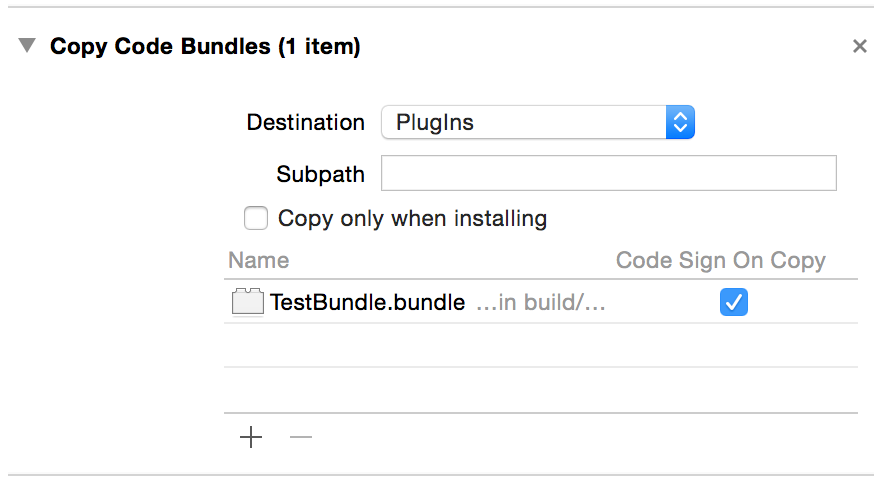
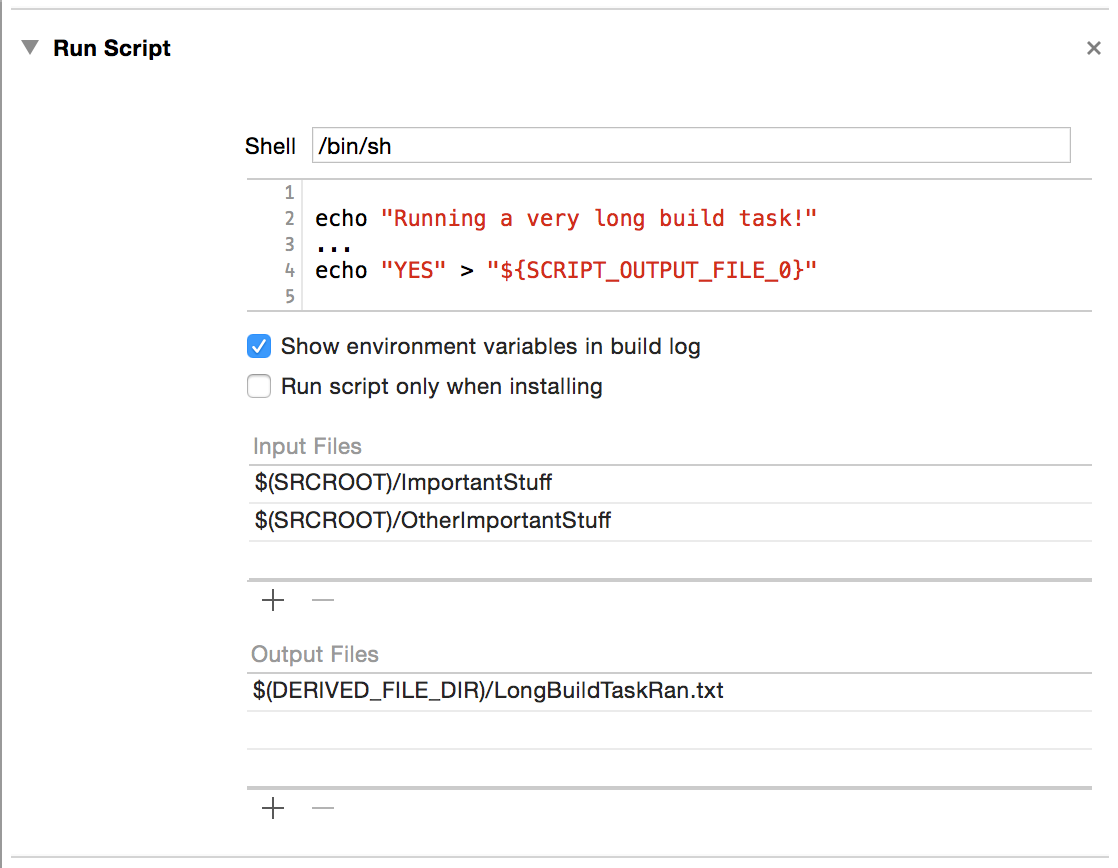
How does this work in practice? Here’s what MarsEdit’s build process looks like from Xcode’s build phase editor:

Screen Shot 2014 08 05 at 2 51 43 PM

You can see that the process of assembling a typical Red Sweater app involves a lot of building up (copying things in), followed by a lot of tearing down, in which I remove framework headers, localizations, etc. These processes are basically fast enough that I don’t mind doing it all programmatically at build time, because it lets me worry less about the pristineness of individual components, and leaves me with with confidence that everything in the final product has been cleaned up. For the Mac App Store build I even have an additional build phase at the end called “Verify Mac App Store Requirements” in which I double check things that have bit me before in App Store submissions, but which Apple doesn’t flag themselves as part of the submission process.

That item at the very bottom is where all the good code signing happens. It’s a somewhat complicated python script that in turn relies upon a library of utility script modules I’ve written for these kinds of things, but the gist of what the “Sign Bundled Frameworks, Apps, Bundles & Tools” build phase does is:

1. Identify the target app being built. In python, you can do this using something like this in a build phase script:

appBundlePath = "%s/%s/" % (os.environ["BUILT_PRODUCTS_DIR"], os.environ["WRAPPER_NAME"])

2. Iterate through the target app bundle, looking for “executable” code. I could hard-code this for every project, but I like the relative safety of knowing that if I add a framework, tool, whatever, it will get caught in this phase. There is also a little gotcha here in that you want to find and sign the deepest items first e.g. so that you sign a helper tool in a framework before the framework that contains it. I have a python module that handles iterating for these items and returns the path to each one in appropriate order.

3. Now the moment of truth: for each item you find, you want to sign it in such a way that you give it your final blessing with all the nuanced code signing flags you care about. My actual code is a little more complicated than this in that I have special cases to avoid using Apple’s timestamp server for debug builds, and some other little tweaks. A common kind of customization you might want to make is to e.g. add arguments to codesign that will cause the preservation of entitlements, so that e.g. an XPC service with its own entitlements will not have those blown away by your re-signing of the app. See “man codesign” for more information about the “-preserve-metadata” option and other flags. But keeping things simple, the gist of signing the code manually from python in a build phase looks like this:

def signAppOrExecutable(thePath):
	signingIdentity = os.environ["CODE_SIGN_IDENTITY"]
	signArgs = ["/usr/bin/codesign",]
	signArgs += ["-f", "-s", signingIdentity, thePath]

	myCall = subprocess.Popen(signArgs, stdout=subprocess.PIPE)
	myResults = myCall.communicate()
	return (myCall.returncode == 0)

Pass the path of every executable tool, plugin, bundle, library, framework, and helper app to this function right before your app is finished building, and all of your custom tweaks, removed header files, adjusted content will be sealed into the final code signature, and you’ll never (ha!) have to think about it again. “Simple,” right?

Bridging iOS WebViews

I hinted in my previous post that similar techniques could be used to bridge JavaScript to Objective-C on iOS, but that it would require using undocumented methods. As with the Mac-based solution, it’s not such a big deal so long as you’re only going to use it for private, debugging builds of your app. So how can it be done?

WebKit on iOS is for the most part famously, frustratingly hidden from developer use. As apps like Safari show, there is an extensive, powerful WebKit framework just as there is on the Mac, but iOS developers are limited to the comparatively impotent UIWebView.

But here’s a hint: UIWebView is itself a client of “proper WebKit,” and thus implements many of the powerful delegate methods that you would implement as the Mac delegate of a WebView. So if I were an iOS developer and wanted to play around with bridging WebView to Objective-C, I would simply subclass UIWebView, and override the delegate methods methods I am interested in:

#if DEBUG
@interface UIWebView (PrivateMethods)
- (void)webView:(UIWebView*)webView
      didClearWindowObject:(id)windowObject
      forFrame:(id)frame;
@end

@interface MyWebView : UIWebView
@end

@implementation MyWebView

// Override methods on UIWebView that it itself employs
// as delegate of a "proper" WebKit WebView object
- (void)webView:(UIWebView*)webView
      didClearWindowObject:(id)windowObject
      forFrame:(id)frame
{
   [super webView:webView didClearWindowObject:windowObject forFrame:frame];

   id myDelegate = [[UIApplication sharedApplication] delegate];
   [windowObject setValue:myDelegate forKey:@"appDelegate"];
}

@end

#endif

Set your WebView to use the custom class “MyWebView”, and now your iOS-based WebView can pass whatever information it needs to directly to your delegate, just as I illustrated for the Mac version.

JavaScript Bug Traps

I am the kind of developer who leans heavily on automated systems for the improvement of my code. For this reason I tend to enable the maximum number of warnings, rely upon static analysis to discover nuanced bugs, develop and run unit tests to automatically confirm expected behaviors, and I encourage my apps to crash hard if they are going to crash at all.

I would characterize all of these behaviors as part of an overall attitude of vigilance against software defects. Learning about problems in code quickly and clearly is a key step maintaining an overall high level of code quality.

Most of my software is developed in Objective-C, which enables me to leverage compile-time and run-time tools from Apple that catch my errors quickly. Between compile-time warnings and errors, and runtime exceptions and crashes, the vast majority of my programming errors in Objective-C are caught within minutes of writing them.

On the other hand, MarsEdit features a rich HTML text editor largely implemented in JavaScript, a language which tends not to afford any of these convenient alerts to my mistakes. I have often stared in bewilderment at the editor window’s perplexing behavior, only to discover after many lost minutes or hours, that some subtle JavaScript error has been preventing the expected behavior of my code. I’ll switch to the WebKit inspector for the affected WebView, and discover the console is littered with red: errors being dutifully logged by the JavaScript runtime, but ignored by everybody.

Wouldn’t it be great if the JavaScript code crashed as hard as the Objective-C code does?

In fact, these days mine does. By a combination of JavaScript hooks that are alerted to the errors, Objective-C bridges that propagate them to the host app, and the judicious use of undocumented WebKit Inspector methods, development versions of my WebView-based apps now automatically present an inspector window the moment any error occurs in the view’s underlying JavaScript code.

For those of you who also develop JavaScript-heavy WebKit apps, I’ll share the steps for enabling this same type of behavior in your app. These steps all apply to Mac-based WebViews, but most of the same techniques could be used with iOS if you are willing to use some private methods to establish a bridge between the WebView and host app (for debug builds only, of course).

Step 1: Catch the error in JavaScript.

In whatever the main source content is for your WebView-based user interface, add some script code to register a callback for JavaScript errors:

<script type="text/javascript">
   function gotJavaScriptError(errorEvent)
   {
      console.log("Error: " + errorEvent.message);
   }

   window.addEventListener("error", gotJavaScriptError,  false);
</script>

Now if you encounter some error and happen to be attached with the web inspector, you’ll see additional confirmation that the error has in fact been noticed. if you’re following along in your own code while you read, I strongly encourage you to add a testing mechanism for generating errors. A simple “click” event callback (or “touchstart” on iOS) does the trick well:

<script type="text/javascript">
   function gotClick(theEvent)
   {
      blargh
   }

   window.addEventListener("click", gotClick, false);
</script>

Now when you click, you blargh. And when you blargh, the error is logged. Of course, just logging the error isn’t very useful because it’s quiet and goes ignored. Just like JavaScript errors usually do…

Step 2: Propagate the error to the host app.

You could do some interesting stuff in the WebView itself. For example you might convert the error into a string and display a prominent alert message. But since there’s so much more you can do once the host app is in charge, it’s worth going the extra mile for that functionality.

To tie the host app to the WebView we need to wait for the WebView’s frame to finish preparing its “window script object,” and then set a named attribute on that object that refers to an Objective-C instance. See that your WebView has a frameLoadDelegate configured, and within that delegate object implement this method:

- (void)webView:(WebView *)webView 
        didClearWindowObject:(WebScriptObject *)windowObject
        forFrame:(WebFrame *)frame
{
   // Expose ourselves as a JavaScript window attribute
   [[webView windowScriptObject] setValue:self forKey:@"appDelegate"];
}

At this point any JavaScript code, including our error-handling callback, can reference the Objective-C delegate directly. But in order to make good use of the delegate we’ll have to add a couple other methods. The first lets the WebKit runtime know that we are not fussy about which of our methods are accessible to the WebView:

+ (BOOL) isSelectorExcludedFromWebScript:(SEL)aSelector
{
   return NO;
}

Now JavaScript code within the WebView can call any method it chooses on the delegate object. Implement something suitable for catching the news of the JavaScript error:

- (void) javaScriptErrorOccurred:(WebScriptObject*)errorEvent
{
   NSLog(@"WARNING JavaScript error: %@", errorEvent);
}

And back in your WebView HTML source file, amend the JavaScript error handler to call through to Objective-C instead of pointlessly logging to the JavaScript console:

<script type="text/javascript">
   function gotJavaScriptError(errorEvent)
   {
      console.log("Error: " + errorEvent.message);
      window.appDelegate.javaScriptErrorOccurred_(errorEvent);
   }

   ...
</script>

Notice that the colons in Objective-C method names are simply replaced with underscores to make them compatible with the JavaScript function naming rules. The errorEvent argument in this case is translated to a DOMEvent object instance in Objective-C, where it can be further interrogated. Alternatively you could pull the parts of the event you want out in JavaScript, and pass along only those bits.

Now we’ve done a considerable amount of work, only to upgrade our easy to ignore JavaScript errors from littering the web console to littering the system console. At least we’d notice these errors in the Xcode debugger console, and might eventually get around to taking a closer look. But we can still do much better.

Step 3: Get face to face with the error.

Of course from Objective-C there are any manner of ways you could handle the error. In a shipping app it might make sense to prompt the user with news of the issue and offer, much like a crash reporter would, to send information about the error to you. Or if the contents and behavior of your WebView are critical enough, maybe it’s worth forcing the app to quit just as it would for a native code crash. But for debugging builds I’ve find it very helpful simply to have the error force the Web Inspector open so I am no longer able to quietly ignore all the red console logging. In the delegate class, go back to the javaScriptErrorOccurred: method and replace the NSLog call with this string of fancy mumbo-jumbo

- (void) javaScriptErrorOccurred:(id)errorEvent
{
#if DEBUG
   id inspector = [[self webView] performSelector:@selector(inspector)];
   [inspector performSelector:@selector(showConsole:) withObject:nil];
#endif
}

That’s it. Now when you run into a WebView-based JavaScript error, the web inspector appears and the list of pertinent errors is front-and-center.

I encourage you to leave the DEBUG barrier in place, because as the prolific use of “performSelector” may suggest, these are private WebKit methods that would probably not be viewed as acceptable by e.g. App Store reviewers. Anyway, you probably don’t want customers being pushed into the Web Inspector.

I hope this technique proves useful for those of you with extensive JavaScript source bases of your own. For everybody else, perhaps I’ve helped to drive home the idea that we should be as vigilant as possible against software defects. All developers write bugs, all the time. It’s only fair that we try to balance the scales and give ourselves a fighting chance by also being alerted to the bugs we write, all the time.

Coding Under Par

Brent Simmons reflects on his ambition to stop coding “late at night”:

I may think I’m adding productive hours to my day – but I’m not. I’m writing bugs, or, at best, not the best code I could be writing. And I pay for it later.

I read Brent’s piece with a lot of nodding my own head. I find late night coding perhaps more alluring than ever because as a husband and father of two, who happens to work from home, much of my daytime development time is compromised by commitments to family, distractions, or even just the knowledge that whatever I’m working on now has a firm and fixed stopping time.

I suppose the same is true late at night, but when it’s midnight and I’m on a perceived roll with some coding challenge, there doesn’t appear to be any stopping me. I “have all night,” or at least that’s what my monkey brain says. Of course, the smarter half of me knows I should be getting calling it a day and getting some much-needed rest.

The next morning, I usually realize that whatever challenge was tantalizing me into the wee hours was in fact a 15 minute problem that I could have, should have, put off until I was more capable.

I think Brent’s observation about the perils of late-night coding are a special case of a larger problem: your best work will come at unpredictable times. As a rule, we probably won’t do our best work at midnight, but there will be mornings when 9AM is not the best time for cranking out code, either. I have often made, and continue making the mistake of assuming that productivity in software development is directly related to time. It’s not. Any of us with a history of working in code has memories of those “weird days” where weeks of work seemed to vanish under the inspired direction of 4 hours “working in the zone.”

I don’t know how to get in the zone reliably, but I am learning to recognize that when I’m not there, it’s not worth pushing it. If you’re banging away at the keyboard and nothing seems to be working as well as it should, maybe it’s time to go to sleep, go for a run, go to a museum, get lunch with a friend, you get the idea. Maybe it’s time to do anything but endeavor to write code as well as you do when you’re at your best.