Constraint Activation

I got started with Auto Layout a few years ago, and on the whole I’m very happy with the framework. It can be exceedingly frustrating at times, especially when some nuanced constraint priority or other is imposing a layout that just doesn’t make sense. But I measure its value by the degree to which I shudder in imagining going back to the old springs and struts approach.

Although some interfaces work perfectly with a fixed set of constraints, other interfaces require dynamic manipulation at runtime in order to achieve the desired result. For example, if a change in a preferences panel brings in some new element to the UI, it might make sense to adjust constraints at runtime to accommodate it.

Prior to OS X 10.10 and iOS 8.0, this could be achieved in a general case by removing and adding constraints as needed to the view in question:

  1. Remove constraints and save them somewhere, e.g. in an array, for later.
  2. Add or remove elements to the view.
  3. Add constraints, e.g. by fetching them from a saved array.

It is important to remove constraints and save them before removing an affected element, because removing the element will cause the constraint to be implicitly removed before you can save it.

Starting in OS X 10.10 and iOS 8.0, I was intrigued by the announcement that NSLayoutConstraint now supports a property called “active,” which can be used to, you guessed it, activate or deactivate a constraint. I assumed this would be an answer to my prayers: a constraint could now be left installed on a view for safe-keeping, but its impact on layout would be negated by setting it to be “inactive.” I envisioned setting up competing groups of constraints on a view and simply activating or deactiving them en masse when the need arose.

I assumed wrong.

Looking at the documentation more closely, I see the description of what the method actually does:

Activating or deactivating the constraint calls addConstraint: and removeConstraint: on the view that is the closest common ancestor of the items managed by this constraint. Use this property instead of calling addConstraint: or removeConstraint: directly.

The rub is that an NSLayoutConstraint whose “active” is set to false will be removed from view it is installed on. So if you have any hopes or dreams of reapplying that constraint later, you’ll need to save it somewhere, just as before. If you don’t keep a strong reference to the constraint, it may be deallocated. If you tried to go back and set “active” a constraint that you referenced as a weak IBOutlet, for example, it would be nil by the time you tried to do so.

The OS X 10.10 AppKit Release Notes makes a clearer emphasis on the intended utility of the “active” property:

Under Mac OS X 10.10, it is now possible to directly activate and deactivate NSLayoutConstraint objects, without having to worry about adding them to an appropriate ancestor view. This is accomplished by manipulating NSLayoutConstraint’s new boolean property ‘active’. Class methods are available for operating on multiple constraints simultaneously, which can be much faster. The legacy API on NSView for adding & removing constraints is now deprecated.

So “active” is not a convenience for easily toggling whether an installed layout constraint has an effect or not, but a convenience for the plumbing of installing and removing them. The emphasis on adding and removal API being deprecated especially underscores that.

Having written this all out, it suddenly occurs to me that the “active” flag I was dreaming of is actually sort of available, and has been all along. Because NSLayoutConstraint supports a mutable “priority” property, you can effectively disable it by setting its priority lower than any other constraints that affect the same view. One caveat though is you can’t change a constraint’s priority to or from “required” at runtime, so you have to choose a priority lower than 1000. Something like this should work:

NSLayoutPriority newPriority = activate ? 999 : 1;
[dynamicConstraint setPriority:newPriority];

So long as a set of counterpart constraints affecting similar views is always prioritize to the inverse when toggling state, something like this should workâ„¢. Of course, it requires knowing the “active” priority in code. If a given disabled constraint should actually have priority 501 or 250, or whatever, then you’d have to save that priority somewhere. In which case you may as well go back to saving the whole constraint.

Remote Codesign Trust

It’s common to use a remote, headless build server to perform iOS or Mac builds for which the “codesign” tool must be run to sign either the resulting binary, the installer package, or both.

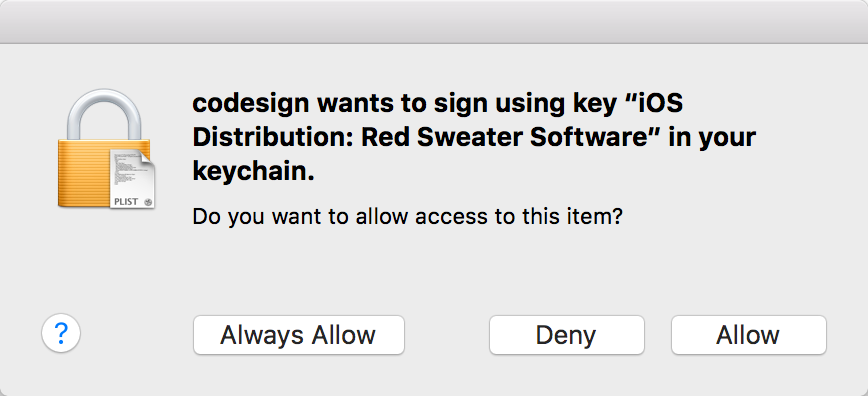
My friend Mitch Cohen raised a concern on our local CocoaHeads that, since 10.11.1 was released, there is a problem with such setups. The dialog that pops up when using a code signing identity for the first time ignores clicks to the “Allow” and “Always Allow” buttons:

Panel prompting to allow permission to use codesign tool with private key.

If you look in the system Console, you see a line along the lines of this, correlated to each attempted click of an “Allow” button:

3/15/16 8:51:55.303 AM SecurityAgent[65532]: Ignoring user action since the dialog has received events from an untrusted source

The changes are apparently rooted in a legitimate security update made by Apple, but the end result for us developers is pretty bleak. It’s seemingly impossible to authorize use of a code signing identity on a remote server. As my friend Mitch put it, he has to call IT and “get someone to go into the data closet” every time this happens. What a drag!

I’m also affected by this issue, since I use a headless Mac Mini as a build server. Lucky for me the server is in my house, but it’s still a drag to have to go log in and control the computer with an attached keyboard.

I poked around for a solution to this problem, and found it lurking in the answers and comments of a Stack Overflow question. The basic idea is you can convince OS X to trust codesign to use the tool, just as if you had clicked the “Allow” button in that UI prompt. Here is a recipe for doing just that, logged in as a remote user over say Screen Sharing:

  1. Open Keychain Access and locate the pertinent private key. You may have to click on the “Certificates” section and then type in part of the name of the identity in question, e.g. “iPhone Distribution”:

    Screenshot of Keychain Access showing the private key

  2. Click the private key and then select File -> Export Items from the menu bar. Save the item anywhere on your server, for example the Desktop. Give it a password e.g. “hardpassword”.
  3. Now stop. Think real hard before you continue. You should have a backup of that private key somewhere. If you don’t? Don’t continue. Did you just make a backup to the Desktop? Yes, in theory. But if these are the only two copies of this private key you need to think long and hard before you continue with the next step, which I absolutely do not advise you to do.
  4. Delete the private key from your keychain. This is the scary (see above), but necessary step to get the Keychain to respect the new permissions you’re going to grant the key in a minute.
  5. Switch to the Terminal and issue a command like the following:
    security import ~/Desktop/Certificates.p12 -k ~/Library/Keychains/login.keychain -P hardpassword -t priv -T /usr/bin/codesign -T /Applications/Utilities/Keychain\ Access.app
    

    It may be important to specify the path to the specific keychain, and to belabor the point you’re importing a private key with the “-t priv” parameter. It seemed like maybe things weren’t working for me until I deigned to include these. In any case, the goal here after running this command is that the private key shown in the screenshot above should now be back in your keychain, but if you double-click it to examine its permissions, you’ll find that codesign is listed among the approved apps. If you need to provide access to other tools than codesign, list them as shown above with multiple -T parameters to the “security import” command.

In my tests that seems to address the issue. After following the recipe above carefully, I can remotely “codesign” with the specified identity to my heart’s content, without a UI prompt of any kind.

It strikes me that this trick probably shouldn’t work, at least in light of Apple’s clamping down on the ability to change authorizations through the UI of Keychain Access. So I won’t be surprised if this series of tricks doesn’t stand the test of time. For now though? No need to call IT and have them go into the data closet.

Update: Erik Schwiebert reports that Apple has addressed this problem in 10.11.4 betas:

That’s great news!

Supercharged Search Scopes

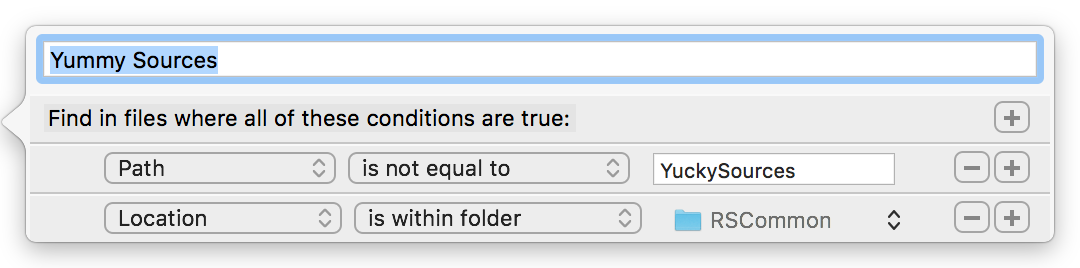
Xcode’s search facility is pretty robust, offering the ability to add custom scopes that can restrict with some precision the focus of your search:

Xcode custom search scope editor

However, if you browse the list of options in the popup menu for some of these items, there are frustrating omissions. For example, in the screenshot above you can see that I’m searching files that are within a folder “RSCommon” but whose path is not “YuckySources”. Unfortunately this search is not very useful, because none of my files has a path exactly equal to “YuckySources”. What I really want is an option to specify that the path does not contain “YuckySources”, but the option is not made available to me. Similarly, Xcode offers no choice for “is not within folder.” Generally, there are glaring omissions for negating conditions. (Radar #24510002).

Frustrated by this limitation, I went poking around in Xcode’s configuration files, and was pleased to discover that search scopes are saved in plain text in a file called SearchScopes.xcsclist, for example in Xcode’s configuration folder:

[Home] -> Library -> Xcode -> UserData -> SearchScopes.xcsclist

Update: As of Xcode 9 the search scopes are stored in a file called IDEFindNavigatorScopes.plist.

If you open this up in a text editor, you’ll see that in fact each search scope definition is substantially defined by a standard NSPredicate style expression:

<Scope
  name = "Yummy Sources"
  predicate = "path != &quot;YuckySources&quot; AND location_filesystem == &quot;/Users/daniel/Sources/RSCommon&quot;"
  uuid = "F5110DAA-5DE7-4DD8-A4B1-6D7CB4A2DF1E">
</Scope>

Do I dare to dream that fine-tuning this predicate in a text editor will lead to the desired search results in Xcode? I do! I quit Xcode and edited the predicate in the file so it reads:

(NOT path CONTAINS "YuckySources") AND location_filesystem == "/Volumes/Data/daniel/Sources-Modern/RSCommon"

This expresses the predicate for what I really wanted my search scope to be, but which Xcode wouldn’t allow me to configure. Opening Xcode and selecting the “Yummy Sources” search now allows me to search for results in RSCommon, but NOT in YuckySources. We’re golden!

So I think the limitation here is in Xcode’s predicate editor, which is apparently not robust enough to specify the variety of options afforded by predicate syntax. In fact a caveat here is if I now attempt to edit the hand-tuned predicate above, Xcode crashes with an exception:

comparisonPredicate should be an instance inheriting from NSComparisonPredicate, but it is <NSCompoundPredicate: 0x7fedcff19ff0>

Lucky for us, the code that applies the predicate seems perfectly happy with the hand-tuned, robust predicate. So I’ll be contented to continue using my fancy, supercharged search scopes, but I’ll remember to edit them in BBEdit when necessary.

By the way, the search scopes you create in Xcode are saved by default to the home folder relative path described above, but Xcode will also search for and load any search scopes configured within a workspace’s xcuserdata folder. For example, if you want to configure search scopes that are only meaningful to your “Delicious” project, you could store the configurations in this file:

/Delicious.xcworkspace/xcuserdata/[yourname].xcuserdatad/SearchScopes.xcsclist

I hope this understanding of Xcode’s search scopes helps you transform its already powerful search capability into an even better, finer-tuned resource for navigating your source files.

Mac App Store Sandbox Testing

For months, many of us Mac developers have noticed that apps built for Mac App Store submission could no longer be tested using iTunes Connect “sandbox” users. Previously, a sandbox user account could be used to authenticate and download a _MASReceipt for a Mac app, to ensure that in-app receipt validation is working as expected. After updating to 10.11.2, many of us noticed that this functionality suddenly stopped working:

At first, we assumed it was a bug. But as time went on, it started to seem as though it could be related to Apple’s announcement that one of its key certificates was expiring.

Still, the communication from Apple about this issue was poor enough that it wasn’t obvious what exactly we needed to do. Even though the page linked above has a section explicitly listing what Mac developers are expected to do:

You can verify your receipt validation code is compatible with the renewed certificate in the test and production environments. A pre-release version of the Mac App Store Update for OS X Snow Leopard beta is now available.

The linked “pre-release version” was no-doubt once a valid link, but at least through my account, it now leads to a permission-denied type failure page.

So what do we do? Fortunately, after chatting through the problem with some friends, Chris Liscio deduced the key, somewhat-obvious in retrospect steps to test your Mac app for compliance with the new certificate, while getting sandbox testing working again at the same time:

  1. Install the new certificate from Apple. In my case, I opened it in Keychain access and added it to the System keychain, where the older, expiring certificate currently resides.
  2. Reboot.

The second step is the important one. If you just install the certificate and expect everything to work, you’ll be sadly rebuffed with continued failures. Reboot. Let the system soak in the new certificate, then try re-launching your Mac app built for submission to the Mac App Store. It will prompt you, as you had previously expected it to, for your sandbox credentials. When you enter them, instead of insisting you set up a new iTunes customer profile, it will just launch. Or, if it doesn’t, maybe you’ve got some problems to work though in your receipt validation code.

Unsteady Platform

I ran into a vexing build failure with one of my iOS integration builds. The vast majority of everything in my complex project, consisting of dozens of dependencies, has built fine, but at link time things blow up because one of the dependencies is not of the expected architecture.

Undefined symbols for architecture armv7:
"_RSIsEmpty", referenced from:
-[RSFormattingMacro emptyMarkupPlaceholders] in RSFormattingMacro.o
ld: symbol(s) not found for architecture armv7

Ugh, huh, wha? How is this happening? It turns out the library in which “RSIsEmpty” resides, RSFoundation, is being linked to, but it’s opting for an OS X version of the library instead of an iOS one. Because this is an integration build that performs a number of related builds for both Mac and iOS, it makes some sense that I would have both an iOS and OS X build result in the build folder. But even if I have built copies for either architecture, why is it opting for the OS X version on an iOS build?

I decided to blow away all the built versions of RSFoundation and try the build again. This time, I got an even more perplexing failure:

clang: error: no such file or directory: '[...]/build-Integration/Release/RSFoundation.framework/RSFoundation'

I’m scratching my head. Did it somehow get removed as a dependency? But then I notice something subtle. It’s looking for the framework in the “Release” build folder, but for my iOS build it should be looking in “Release-iphoneos”. What the heck is going on?

In spite of the sole build target in this scheme being an iOS app, Xcode (actually xcodebuild) is opting to build this scheme with a default destination of OS X. I don’t know of a direct way to get xcodebuild to list the available destinations for a scheme, but I know that if you pass a bogus destination platform, it will do the honor of listing its impressions:

xcodebuild -destination "platform=xx" -scheme MyIPhoneApp

The requested device could not be found because no platform could be found for the requested platform name.

Available destinations for the "MyIPhoneApp" scheme:
		{ platform:OS X, arch:x86_64 }
		{ platform:iOS Simulator, id:6DF04FFC-1C8A-4745-8F8C-7369E9CBF8DB, OS:9.3, name:iPad 2 }
		[... every other iOS simulator on my Mac ...]

Aha! So it thinks my iPhone app is suitable for OS X. But why? After a great deal of experimentation and poking around, I discovered the root of the problem is summarized by this true statement:

If any target in a Scheme’s dependency tree targets OS X, then the scheme itself will also be considered to target OS X.

In retrospect, this explains the problem perfectly. I had recently added a subproject to my dependency tree that builds both an iOS and a Mac version of a library. That’s fine: it works pretty well these days to allow targets for differing platforms to coexist in the same project file. But each of these targets also shares a dependency on a single, legitimate OS X target: a helper tool used in the process of generating that project’s own source files.

This must be at least a relatively common scenario for iOS builds of certain complexity. Because the platform on which all iOS builds run is OS X, any helper tools that are compiled and used in the process of generating sources or otherwise processing build materials, must be built for OS X.

The workaround to my specific problem is to specify a platform explicitly on the command line. I can’t assume that because the scheme targets iOS, it will necessarily default to an iOS platform target. I consider this a bug, not only because it led to this difficult to diagnose build error, but because it has other ramifications such as the presentation in Xcode’s scheme popup for these projects a useless, distracting “My Mac” target which should never be selected for the schemes in question.

I filed this as Radar #24247701: A scheme whose target has dependencies on another platform shouldn’t “support” that platform.

Presenting HTML On Apple TV

In a recent post on my Bitsplitting blog, I complained that Apple’s forbiddance of web views on Apple TV would limit many developers who use HTML tastefully in the construction of their interfaces. I suggested that Apple might allow developers to use web views, but limit their usefulness as full-fledged web browsers.

Since writing that article, I discovered a potentially useful “backdoor” of sorts that could allow developers to continue using HTML to some extent for visual formatting of content in their user interfaces.

UITextView supports attributed strings, and NSAttributedString supports being initialized with HTML. Historically on the Mac at least, this capability was famously poor, but I seem to recall reading that it had been boosted at some point by using WebKit behind the scenes to do a more proper conversion.

Here’s an example of how an Apple TV app can convert literal HTML content into a visual form. This is, so far as I can tell, compliant with both the letter and the spirit of Apple’s guidelines for using the SDK:

NSString* staticHTMLContent = @"<div style='font-size:6em;'><strong>Hello</strong> <span style='font-family:courier;'>there</span>, I'm <span style='color:red;'>HTML</span>!</div>";

NSAttributedString* myHTMLString = [[NSAttributedString alloc] initWithData:[staticHTMLContent dataUsingEncoding:NSUTF8StringEncoding] options:@{NSDocumentTypeDocumentAttribute : NSHTMLTextDocumentType} documentAttributes:nil error:nil];

[self.textView setAttributedText:myHTMLString];

This example code is run from a UIViewController whose self.textView is an IBOutlet to a UITextView in the user interface. And here’s how it looks in the Apple TV simulator:

HTML rendered on the Apple TV simulator

Granted, this is a far cry from a fully-functional web view. I’m sure it won’t serve the needs of all developers who currently rely upon UIWebView or WKWebView, but I expect that in some cases it will be a valuable workaround to the otherwise total omission of support for rendering HTML on Apple TV.

Not Available On tvOS

Along with many other Mac and iOS developers, I’m digging into Apple’s SDK for tvOS development. As announced in the special event yesterday, the SDK is based on iOS and will be very familiar to most Apple platform developers. There are, however, some differences: functionality from iOS frameworks that is not available on tvOS, as well as a handful of new frameworks specifically suited to the needs of “TV apps.”

A very notable absence is UIWebView. Black Pixel’s Daniel Pasco points out on Twitter that this will be a significant impediment to porting many iOS apps:

When I say UIWebView is absent, I should clarify that the class name is still present in the UIKit headers on the tvOS SDK, but it is marked with a new compiler availability attribute, __TVOS_PROHIBITED. This is handy because at least when you run up against the problem, you don’t have to fret about whether you simply neglected to link against the right framework. It’s there, it may or may not work, you just can’t use it.

In case it’s not obvious, you can use a massive search of the SDK’s header files to zero in on other such classes and methods that may be prohibited from use in TV apps:

grep -r TVOS_PROHIBITED UIKit.framework/Headers/*

(Note: it was brought to my attention that this search is purely academic because Apple has published a browsable list of API changes from iOS to tvOS.)

The results are a doozy! But many of the marked items simply wouldn’t make sense on Apple TV, like mucking with the UIStatusBar, are marked as prohibited. There are other tags too, such as __TVOS_UNAVAILABLE, which presumably denotes that technologies that Apple would like to provide but hasn’t yet, and __TVOS_DEPRECATED, which blessedly does not yet match any API provided in the tvOS SDK.

Take a look in the Availability.h header file for this and other interesting attribute definitions, including counterparts for OSX, iOS, and watchOS.

The Seven Stages of Swift

For all except the newest members of our Apple development community, the arrival of Swift is something that has to be reconciled against our previous and ongoing relationship with Objective-C. This handy reference will help to guide you through this journey. Where do you fall in the spectrum? How you will advance to the final stage?

Shock and Disbelief

Apple announced a new programming language? They didn’t. They couldn’t. This is not WWDC. That’s not Tim Cook. The world is upside down! Why is John Siracusa smiling?

Denial

Swift is not even a real programming language. I mean, it’s not replacing Objective-C. I mean, It’s not meant for real Cocoa programmers. I mean, it’s just Apple trying to satisfy those … weird programmers who like buzzwords! Objective-C is here to stay.

Anger

Oh crap, Swift is replacing Objective-C! Arrrrrrrggghhh! Why, Apple!? WTF? Where’s Objective-C 3.0? You’re killing Objective-C?! I love Objective-C. Die in a garbage collected fire!!!

Bargaining

I suppose Swift might be useful someday. Support for dynamic message dispatch is a start. If Apple gives me just one more Objective-C feature, I’ll give it a shot.

Guilt

Ugh. I should really start learning about Swift one of these days! What is wrong with me?

Depression

Who cares? I could learn Swift, but what’s the point? My Objective-C skills are useless. Dot notation won. I feel this inexplicable weight in my arms. Static types are hanging from my arms. I can’t move my arms. Our apps are all going to die someday.

Acceptance and Hope

Holy crap, Swift made this so easy! Maybe I like Swift? I mean, I still love Objective-C, but I don’t love love it. Maybe we needed a new language. Maybe we were aching for a new language. Maybe we needed more buzzwords.

I like buzzwords.

(Why is John Siracusa smiling?)

A Eulogy For Objective-C

I missed Aaron Hillegass’s talk at AltConf earlier this year, but was nudged to take a look at the transcript by Caro’s tweet today linking to the talk’s video page on Realm.

Although I’m 100% sure, based on experience, that Aaron’s talk is a pure delight to watch, I also appreciate that I could jump right in and read a transcript of the talk until I get a chance to watch it. Aaron gives a thought-provoking “eulogy” for Objective-C, in which he celebrates its parentage and its life thus far.

When a guy like Aaron Hillegass gives a history of Objective-C, and speaks to its strengths and weaknesses, you should hang on every word. He covers many of the features that distinguish the language, provides a context for when they were added, and gives examples of key technologies that are enabled by them. He is also aware of the tradeoffs some of these features demand:

Loose typing made a lot of things that were difficult in other languages much easier, or possible. It also made bugs that didn’t exist in other languages possible as well. And you embrace that as an Objective-C programmer. You’re like, “This is a language for smart, pedantic, uptight people, I’m going to be very careful and do the right thing when I’m typing in names.“

I love his hypothetical quote, and think it condenses the feeling a lot of us long-time Objective-C programmers have about the language. We welcome Swift in many respects, but it’s hard to let go of a language whose idiosyncrasies we’ve grown to love, hate, and ultimately make peace with.

The Curious Case Of Xcode’s Commit Message

Xcode has a behavior with its source code integration, wherein the pending commit message is persisted so that if you cancel a commit, and then go back to commit again later, the text you already typed is preserved.

This is a nice feature.

However, my friend Seth Dillingham lamented on Twitter that for some reason the persisted commit text on his Mac was crashing Xcode. Yikes. No problem, he just needed to find the persisted text and delete it. It should be in some Xcode preferences file, or maybe in ~/Library/Developer, or somewhere else sane like that, right? Right?

Wrong. A little snooping on my part reveals that Xcode saves this bit of text in just about the least likely place I would expect…

Most people consider the OS X pasteboard pretty monolithic, especially since it’s so easy by default to obliterate the contents of the default pasteboard by e.g. copying new text to overwrite the old. But there are in fact multiple default pasteboards in OS X. For example there is a general pasteboard for typical copy and paste, but a different pasteboard for dragging content from one place to another. This is a good thing, because we wouldn’t want a drag to obliterate the copied text we were about to paste.

Have you ever noticed that on OS X, when you search for some text in one app, and then switch to another app to use its “Find” functionality, the same search text is already present in the search field? Thank, or blame, the system standard “Find” pasteboard, which makes this possible.

There are also an endless number of possible custom pasteboards, named by the creator and used for whatever purpose they see fit. Usually this is to accommodate the movement of data within an app in such a way that it doesn’t muck up the standard system pasteboards. But Xcode uses it for something more akin to the “Find” pasteboard described above. They declare and use a whole custom pasteboard to store … drum roll please … the commit message.

If you use Xcode for Source Control, select “Commit…”, type something into the commit message text area, then cancel the commit. Now, from the Terminal:

echo "from AppKit import NSPasteboard\nprint NSPasteboard.pasteboardWithName_(\"IDESourceControlCommitMessagePasteboard\").stringForType_(\"IDESourceControlCommitMessagePboardType\")" | /usr/bin/python

There’s your commit message!

Now, let’s suppose you have run into the same bad luck as Seth, and need to clear out that commit message text to prevent Xcode crashing? NSPasteboard’s “releaseGlobally” method should do the trick:

echo "from AppKit import NSPasteboard\nNSPasteboard.pasteboardWithName_(\"IDESourceControlCommitMessagePasteboard\").releaseGlobally()" | /usr/bin/python

Now you know possibly a bit more about NSPasteboard on the Mac and probably a lot more about how Xcode persists its commit message text. I know I sure do!